Introduction#
Schemes allow you to create interactive floor plans or visualizations of your home/building, where you can:
- Place devices on a photo or floor plan
- Display sensor values directly on the scheme
- Add text labels and descriptions
- Control devices by clicking
Currently, devices can only be controlled by clicking to open the device details, where you can change their values.
Examples of Schemes#
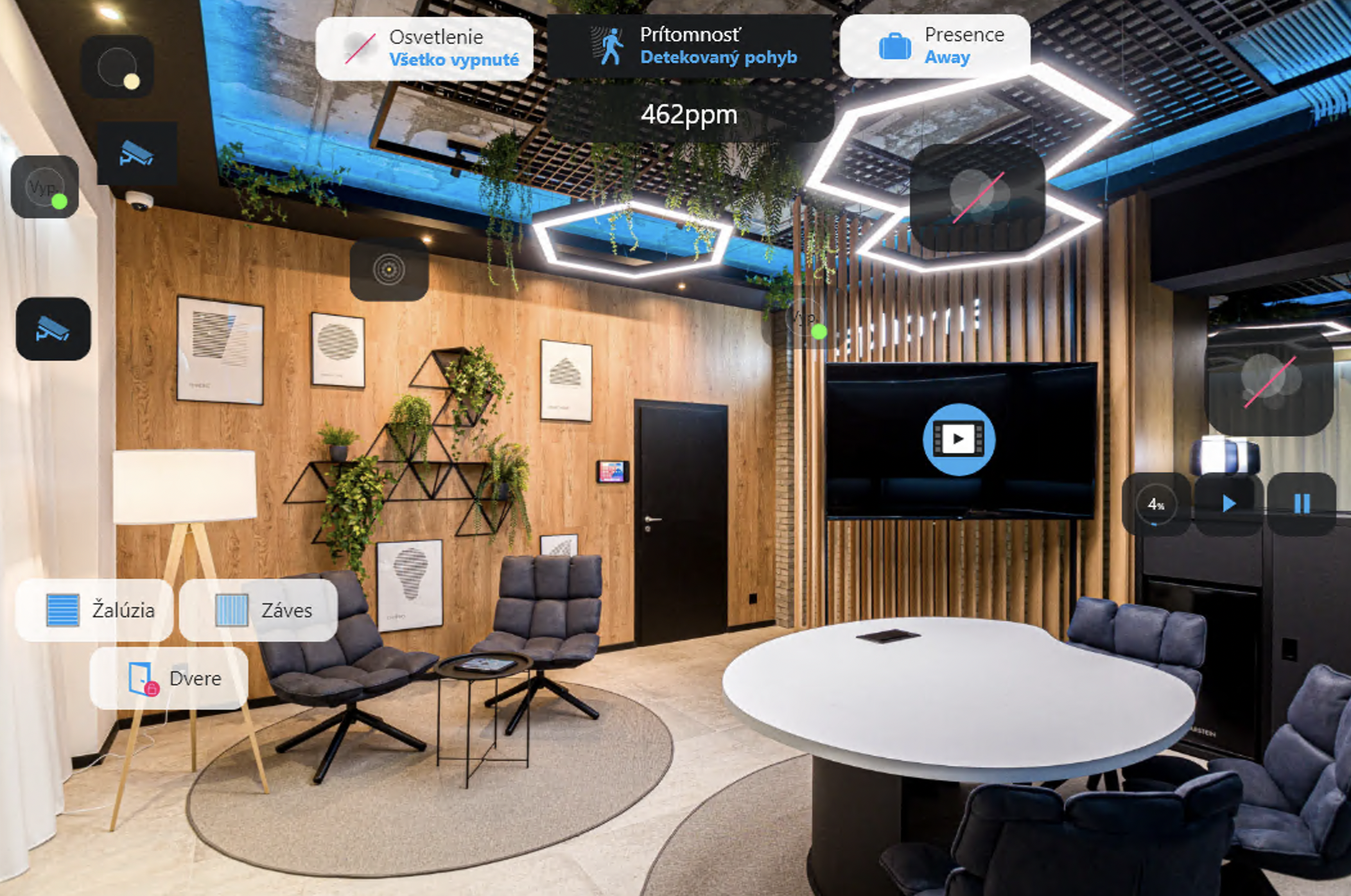
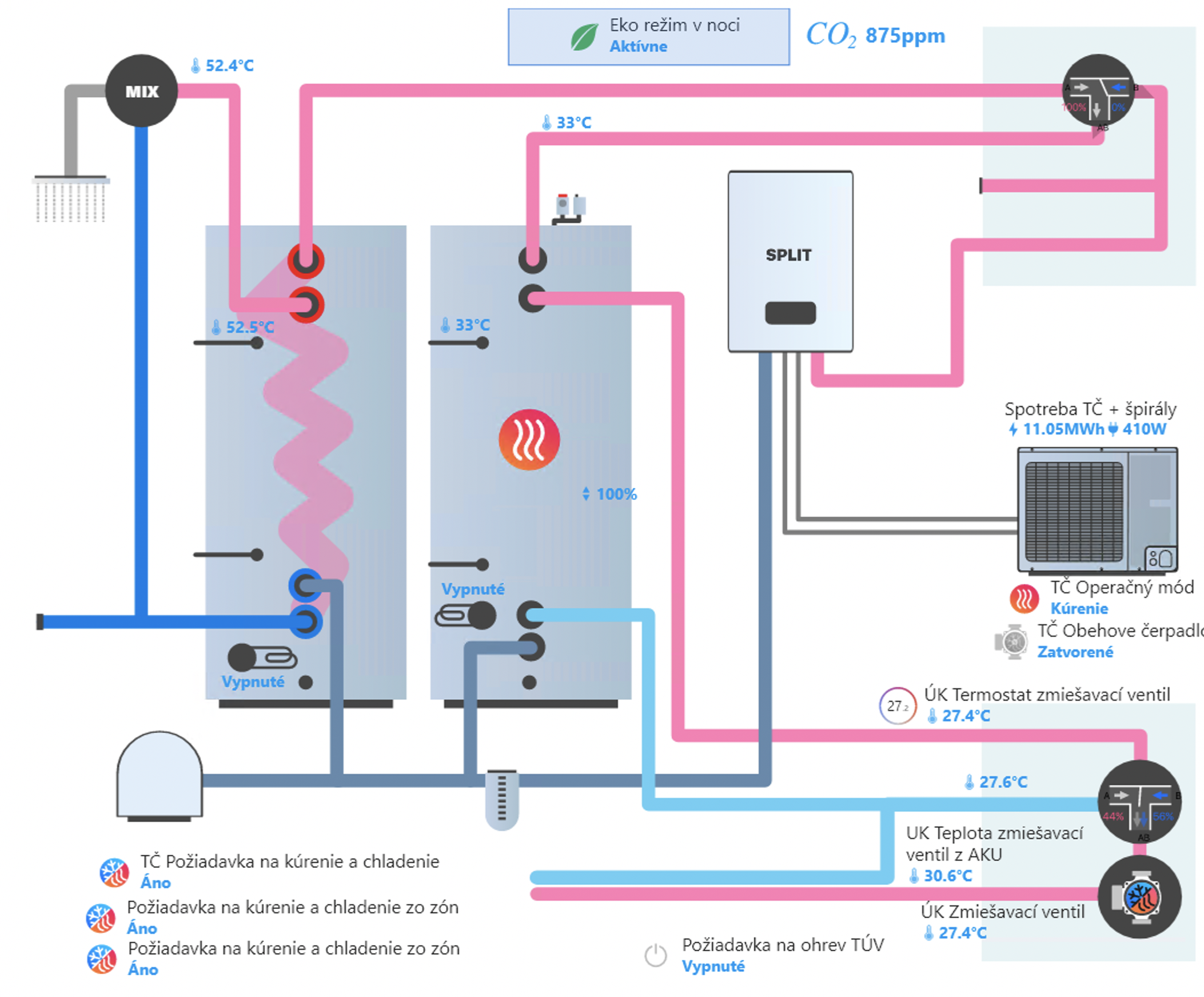
Sample Backgrounds for Download#
You can download sample backgrounds for your schemes:
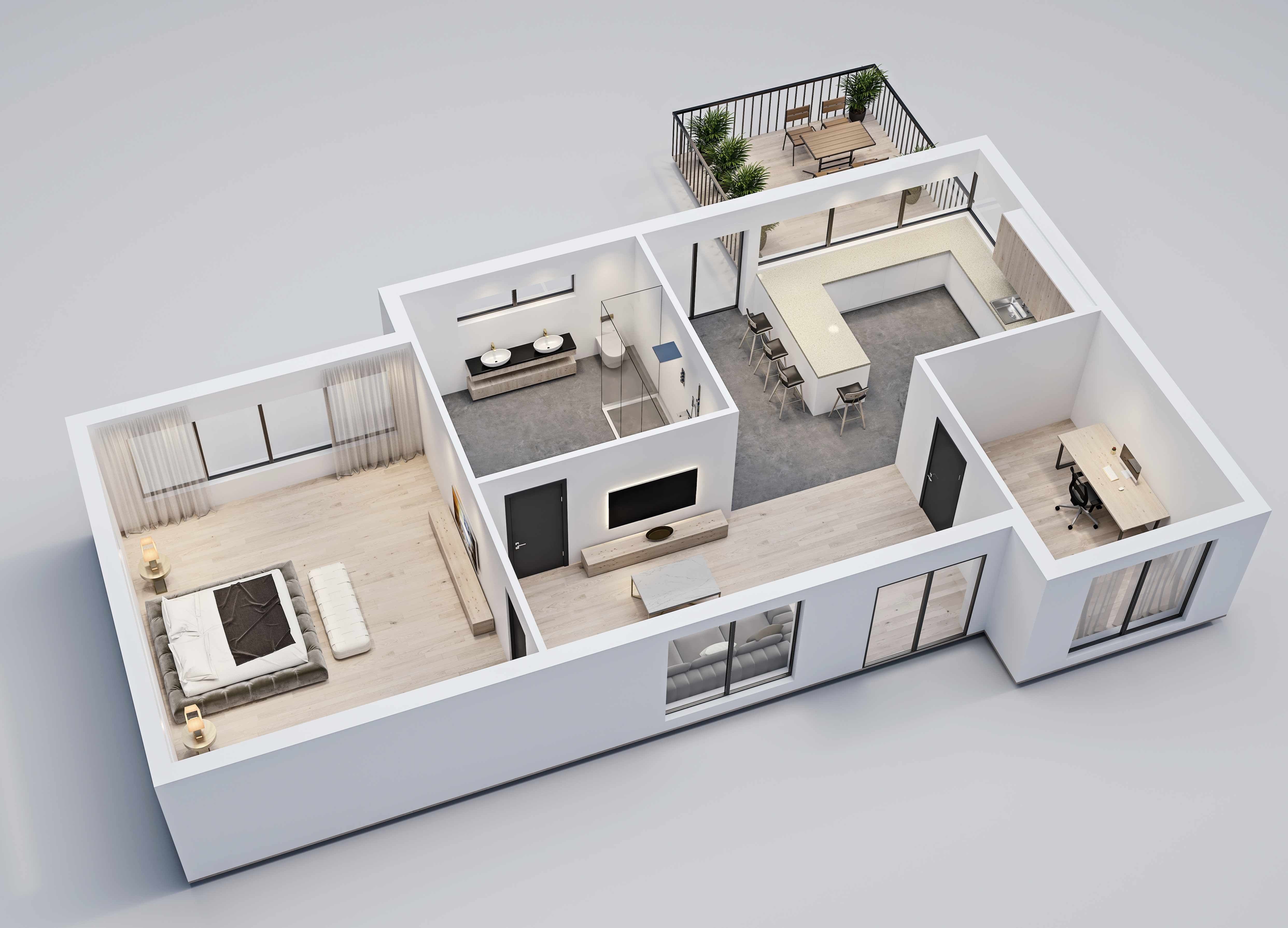
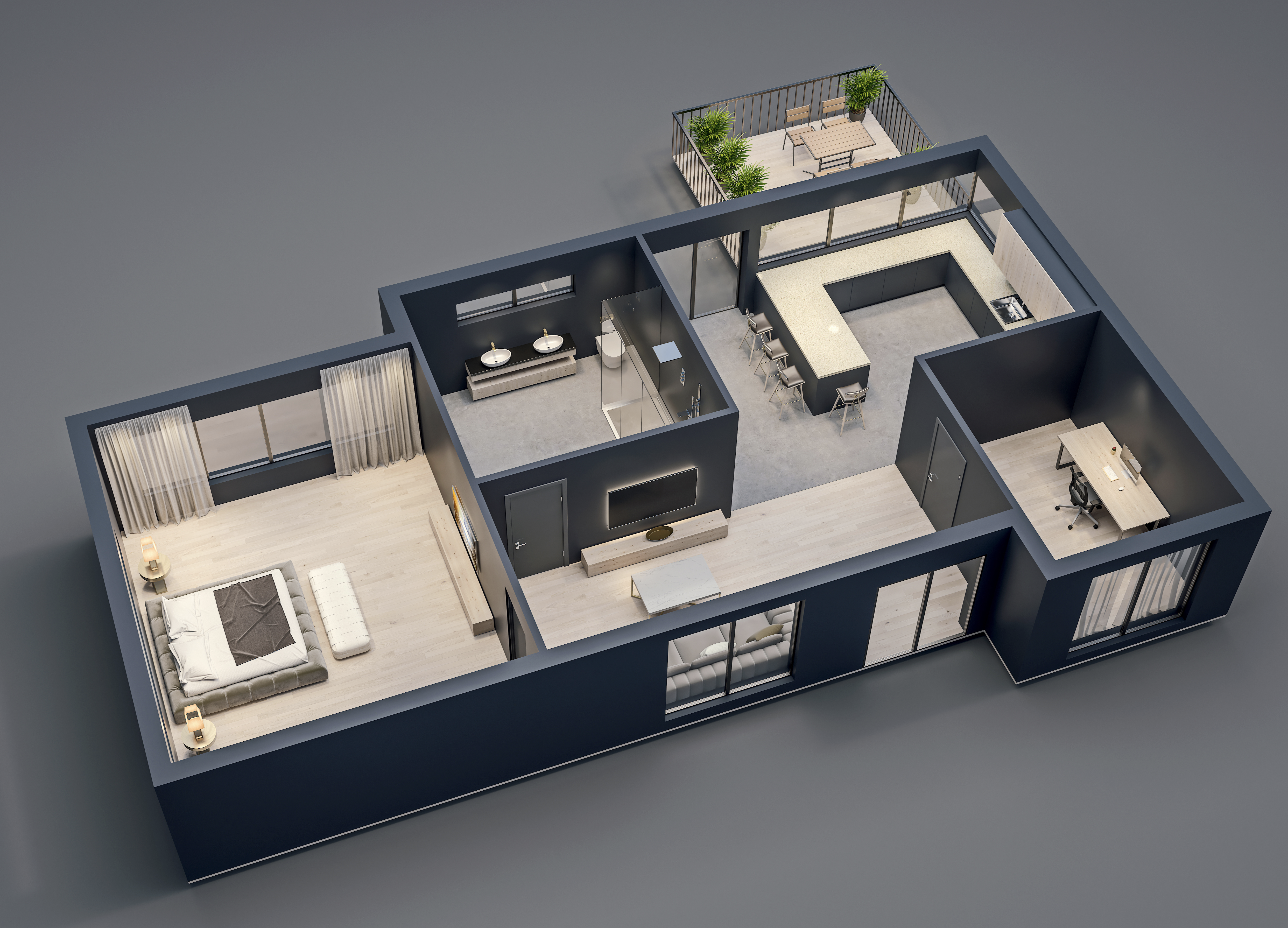
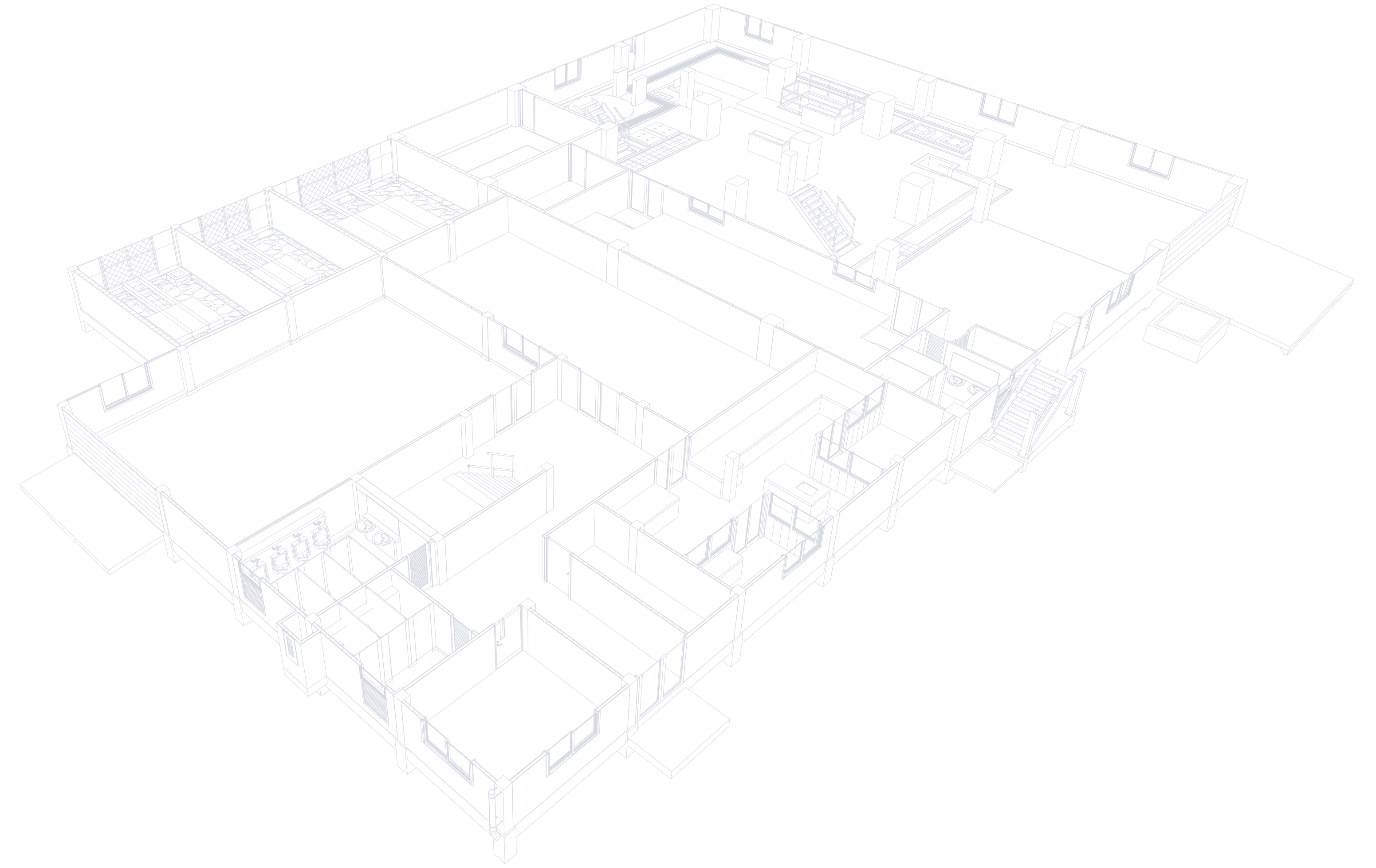
3D Floor Plans#
 Download 3D floor plan – light
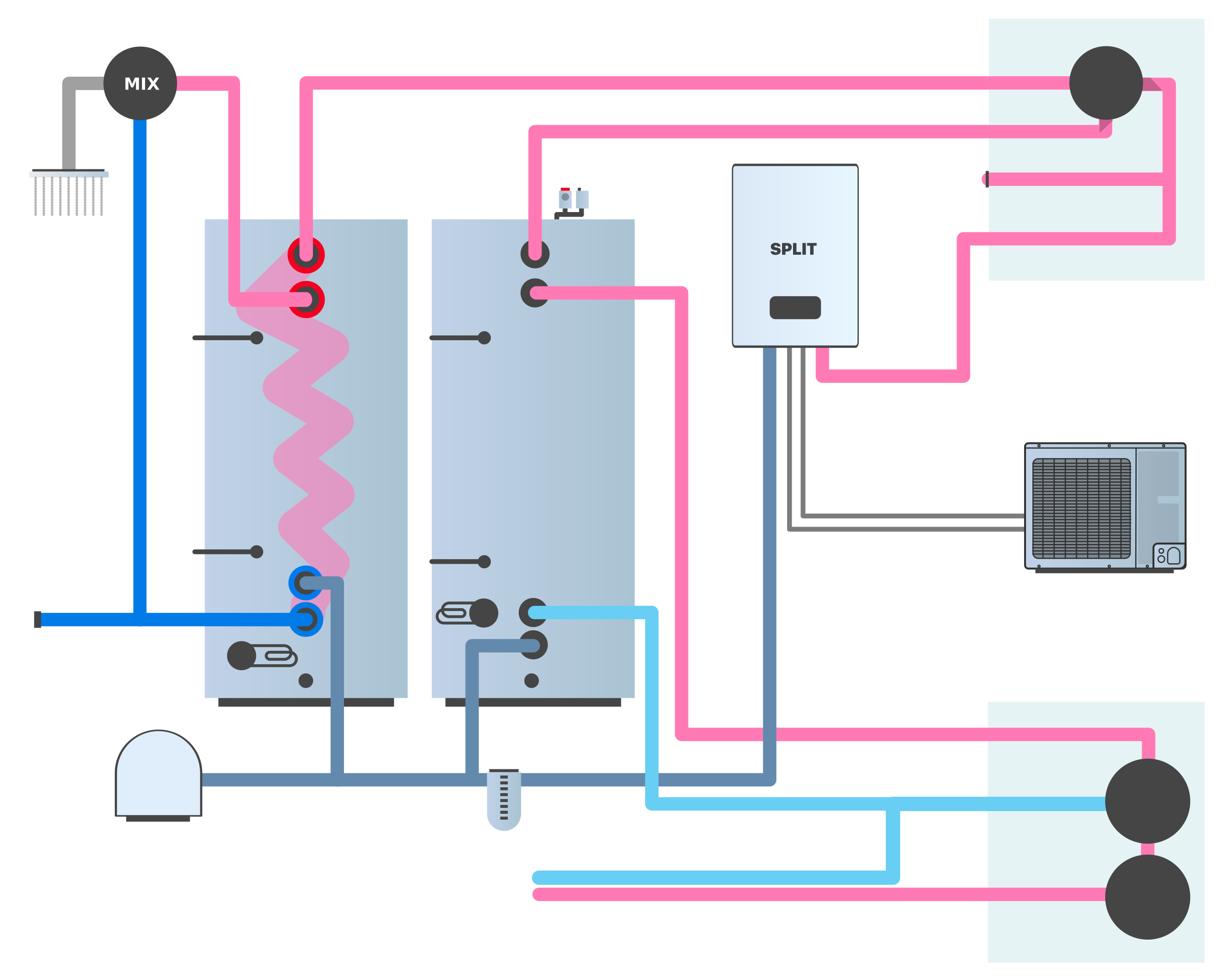
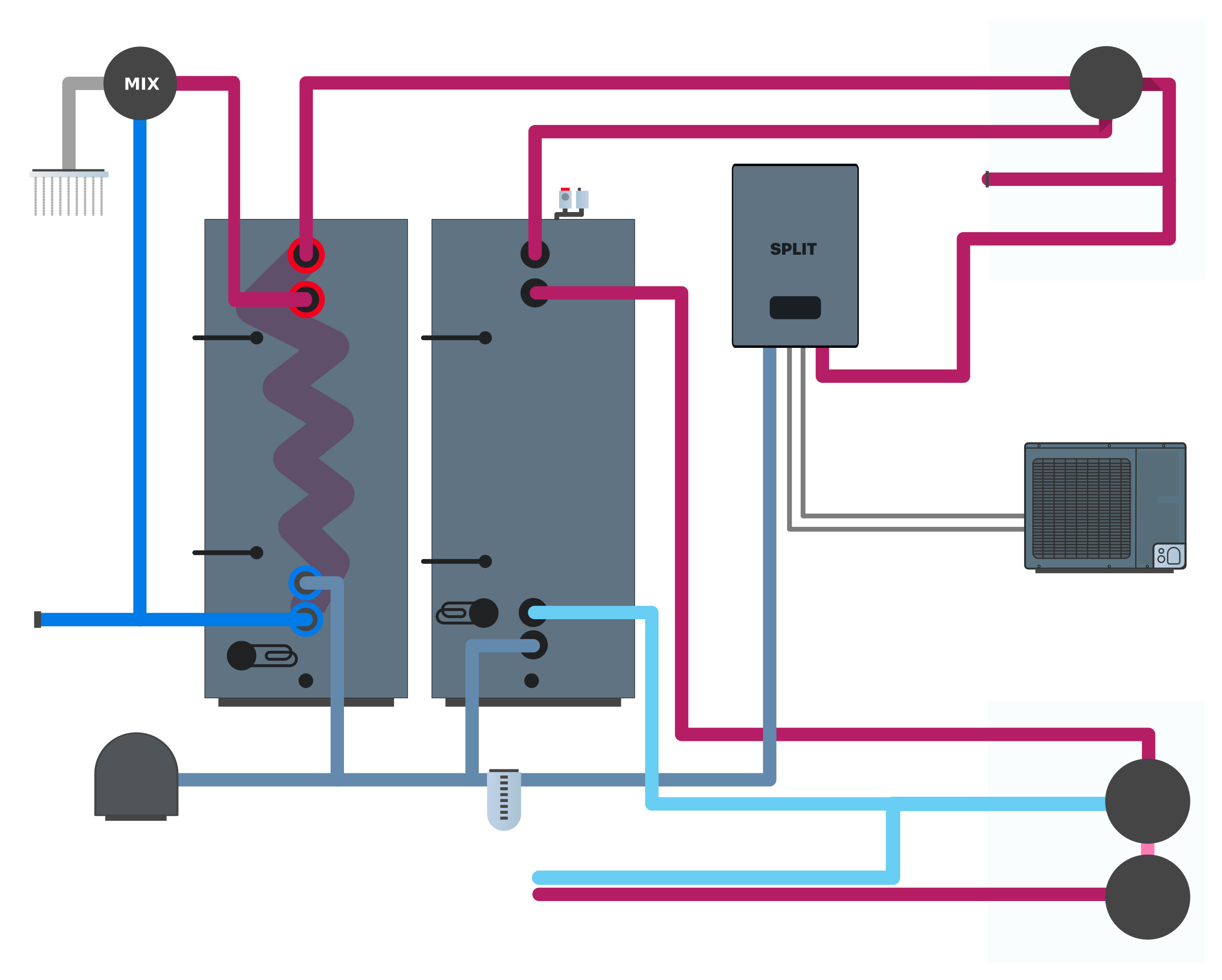
Hydraulic Schemes#
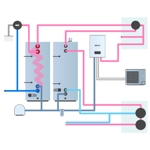 Download heat pump hydraulics – light
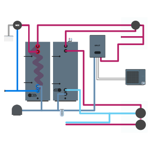 Download heat pump hydraulics – dark
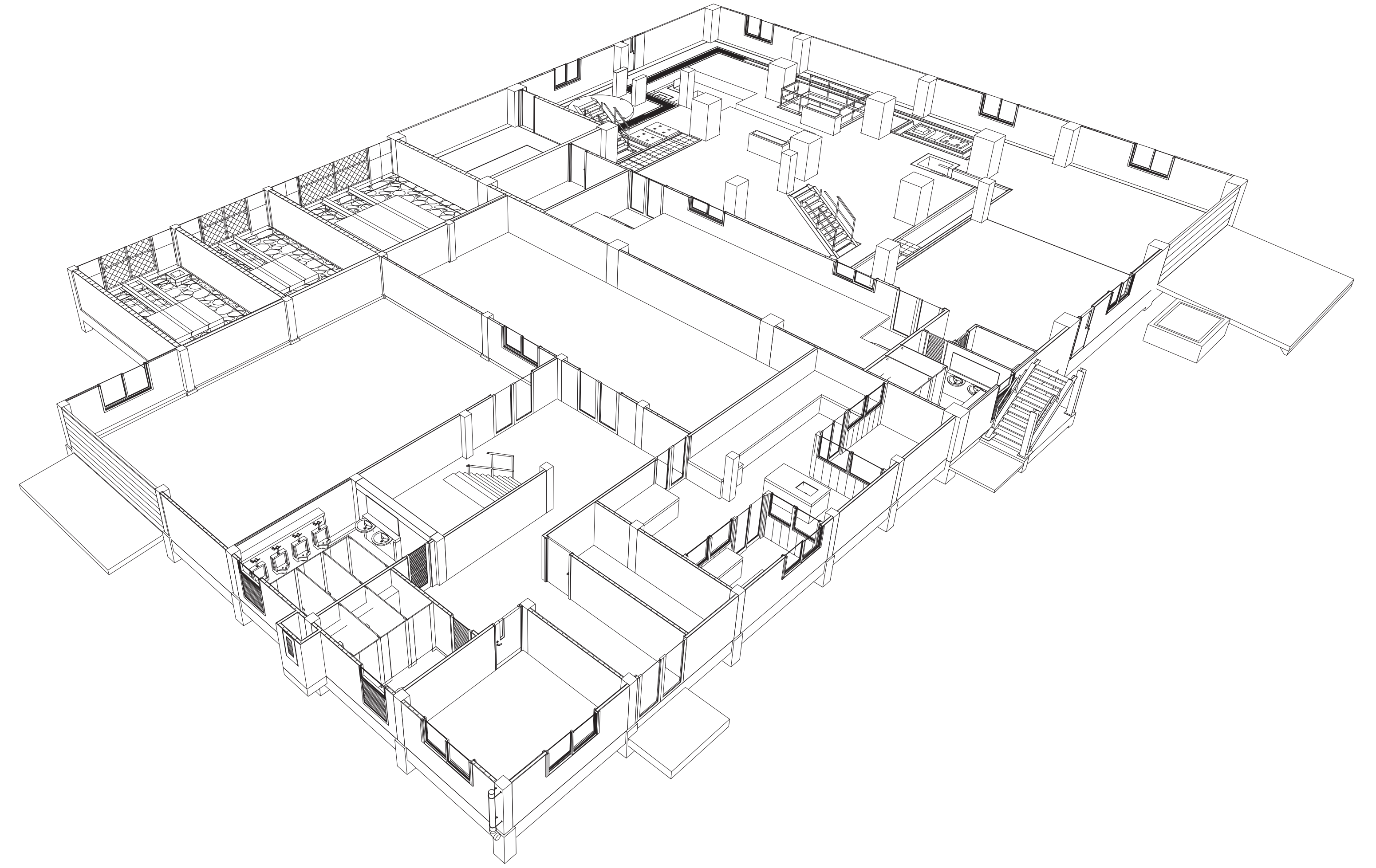
Industrial Schemes#
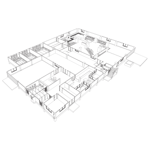 Download industrial scheme – light
 Download industrial scheme – dark
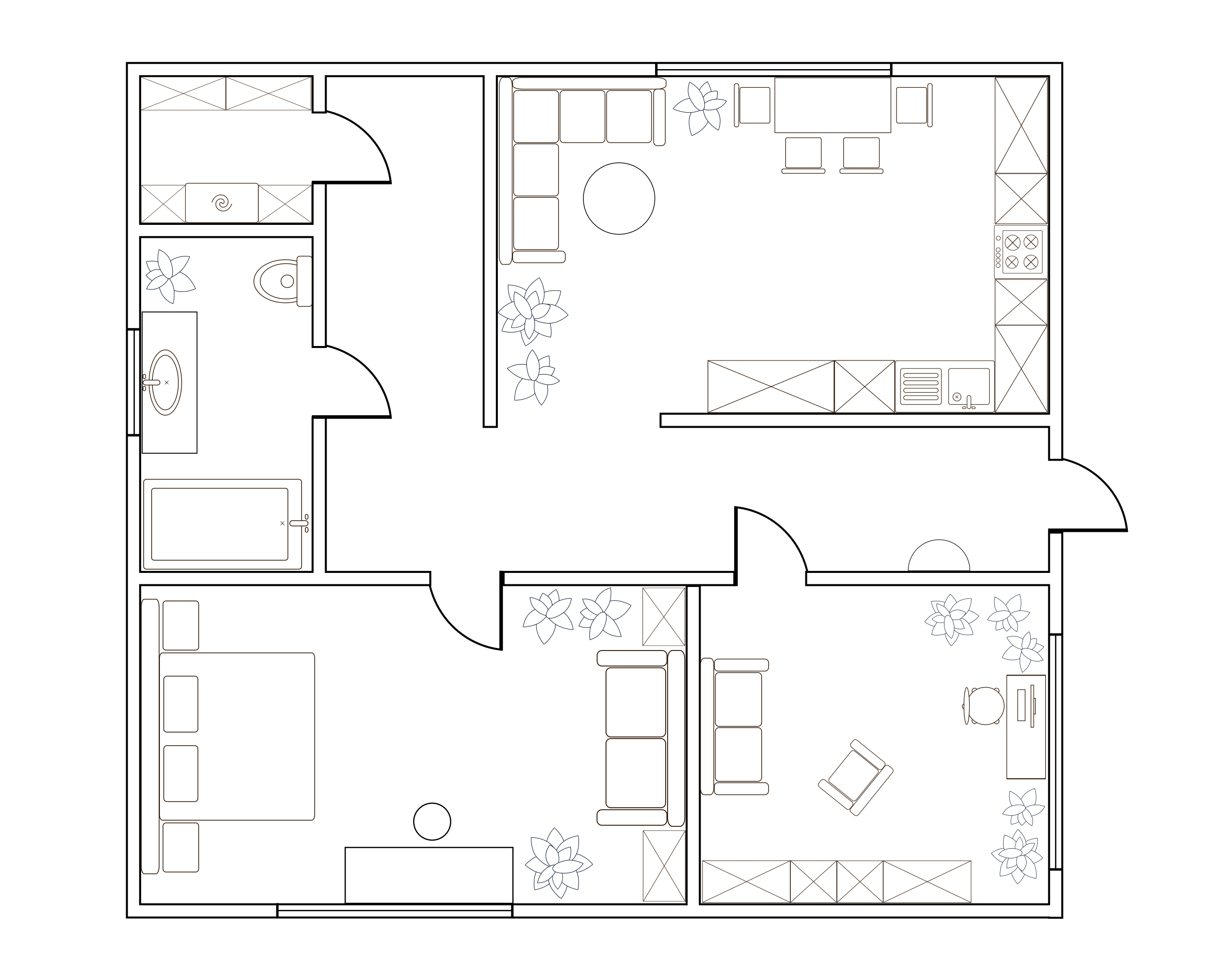
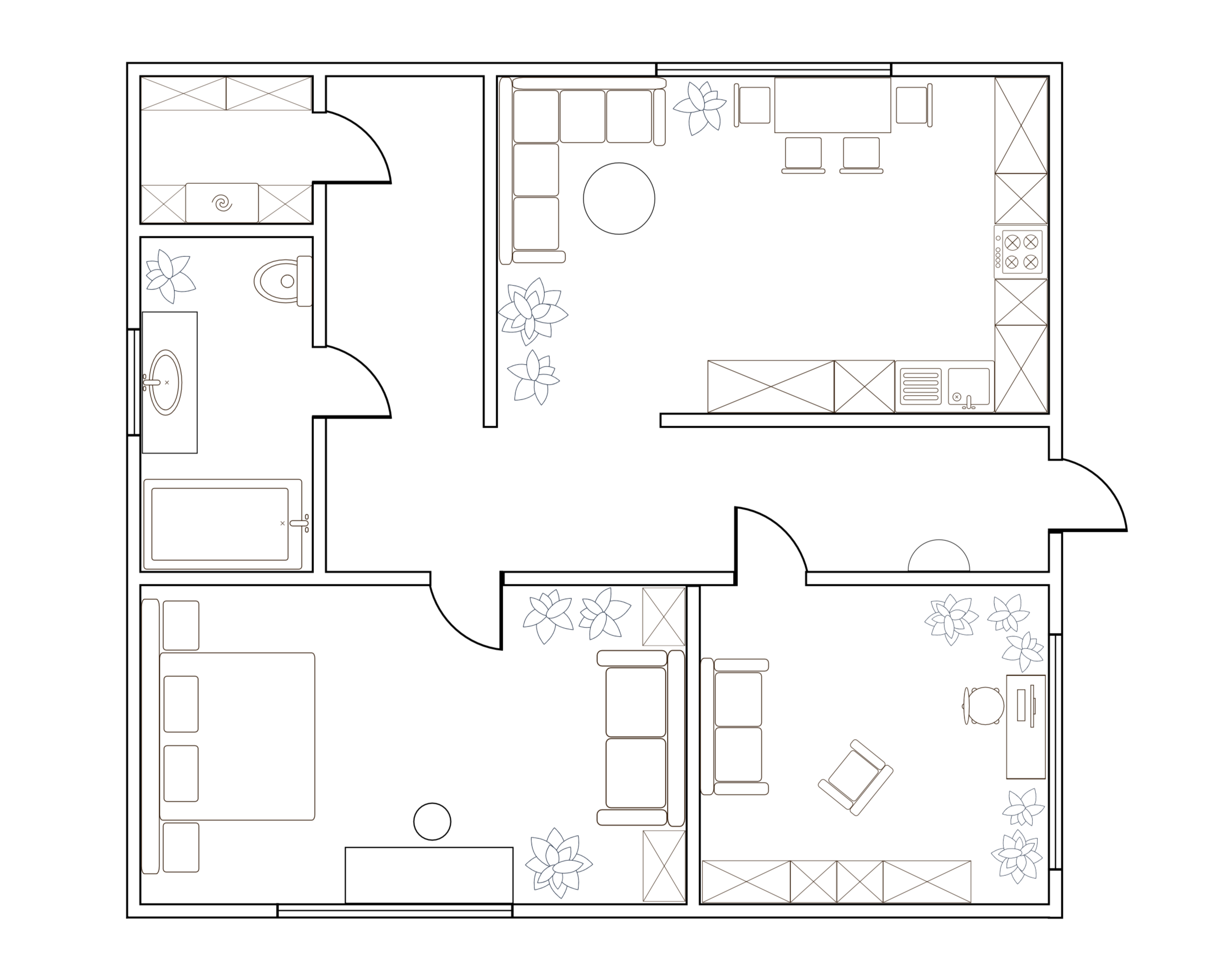
Residential Schemes#
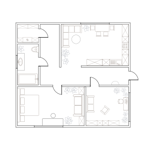 Download residential scheme – light
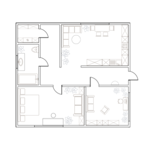 Download residential scheme – dark
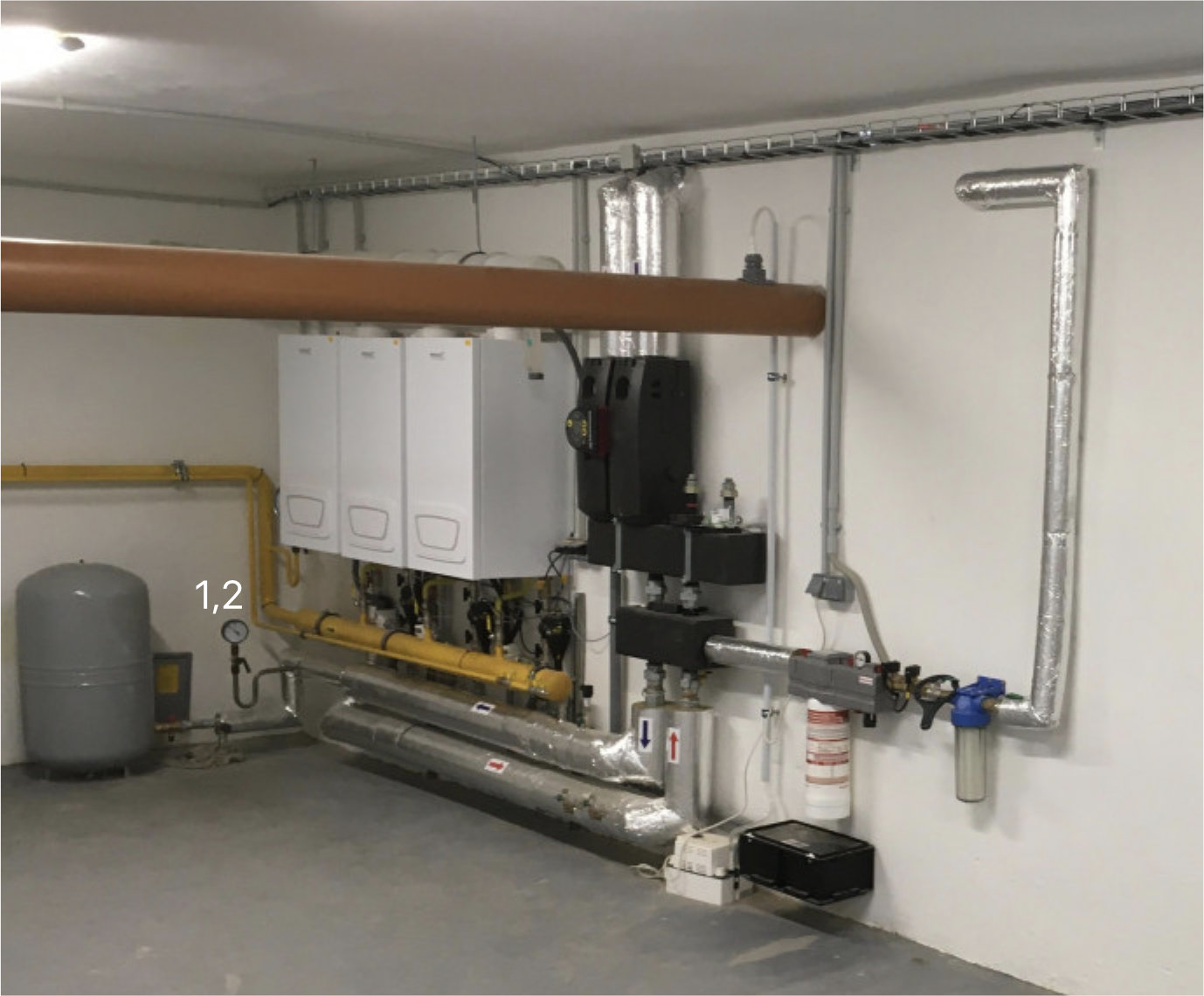
Boiler Rooms#
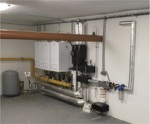
Creating a New Scheme#
Adding a Scheme Section#
- On any surface, switch to Edit mode.
- Add a new section of type Scheme.
- In the scheme properties, select the image to be used as the background.
Supported file formats: *.jpg, *.jpeg, *.png, *.webp, *.svg
Images larger than 3200x3200 will be automatically resized.
Global scale#
If your devices appear too small, adjust Global scale in the scheme properties (for example to 250% or 300%).
Editor Tools#
The scheme editor offers the following tools:
✓ Select#
Basic tool for selecting and moving objects on the scheme.
- Click to select an object
- Double-click to open the main properties of the object
Text#
Add a text label or description to the scheme. You can:
- Align (left, center, right)
- Bold text
- Adjust for light/dark mode
- Set background opacity
Device#
Add a device to the scheme:
- Select a device from the list
- Filter by zones
- Configure Visualization (icon, name, value)
- Set scale, corner radius, and background opacity
Value#
Add statistical values from devices.
Working with Objects#
Duplicating Objects#
If you have defined the appearance of one device, you can use it as a template:
- Select the device with the desired appearance.
- Use Ctrl + D or Duplicate.
- All newly created devices will have the same properties.
Bulk Adding Devices#
You can add multiple devices at once:
- Click on the device icon in the tools.
- Filter devices by zone (e.g. living room).
- Select all devices you want to add.
- Place them in the desired locations.
Object Properties#
Visual Settings for Devices#
- Name – show/hide device name
- Icon – show icon
- Value – show current value
- Center – center alignment
- Scale – object size
- Round corners – corner rounding
- Opacity – background opacity (0–100%)
Theme#
Set the theme according to the application:
- Light – for the application in light mode
- Dark – for the application in dark mode
- Match app setting – automatic switching
Scheme Properties#
Global settings for the entire scheme:
Background#
- Width – scheme width in pixels
- Height – scheme height in pixels
- Color – background color (e.g. #000000)
- Image – upload background image
- Dark color – background color for dark mode (visible if dark mode is enabled)
- Dark image – background image for dark mode (visible if dark mode is enabled)
Global scale#
Slider to adjust the size of all objects on the scheme (100%–400%).
Display Modes#
The scheme operates in two modes:
Pinned Panel#
The device detail is displayed in a sidebar that remains open.
Floating Panel#
The device detail is displayed as a floating window above the scheme. The panel automatically hides when you click outside.
Keyboard shortcuts#
Editing#
| Shortcut | Action |
|---|---|
| Ctrl + S / Ctrl + Enter | Save |
| Esc | Close |
| Ctrl + Z | Undo |
| Ctrl + Y | Redo |
| ← / ↑ / → / ↓ | Move object |
| Shift + ← / ↑ / → / ↓ | Move object (fast) |
| Ctrl + C | Copy object |
| Ctrl + V | Paste object |
| Ctrl + D | Duplicate object |
| Delete / Backspace | Delete object |
Appearance#
| Shortcut | Action |
|---|---|
| Ctrl + H | Change skin |
| Ctrl + J | Change dark mode |
| Ctrl + K | Change dark theme |
Media library#
All images used in schemes are stored on the Core drive.
You can check the storage status in Media library, where you can see:
- How much space the images occupy
- How much storage capacity is still available
Synchronization#
All changes in schemes are automatically:
- Uploaded to the drive
- Distributed to all devices
- Synchronized across all platforms (Windows, Android, iOS)