Configuring TapHome KNX Gateway in ETS#
TapHome KNX Gateway uses a KNX component from Weinzierl called BAOS. The gateway is in ETS listed under the Weinzierl name. BAOS is KNX certified.
1. Import Product Database#
Download product database from this page.
Open ETS 5 → Catalogs → import Weinzierl product database from downloaded archive.
2. Add BAOS Module to Your Installation#
Change to Topology view in ETS project:
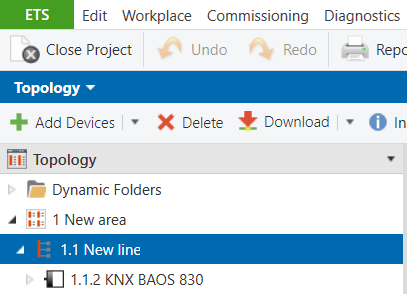
From producer catalogue choose Weinzierl producer and find KNX BAOS 832 module. Insert module to appropriate area and line.
3. Configure BAOS Data Points#
Select BAOS module and switch to its parameters. Choose first data point group 1-10, select data point 1 type.
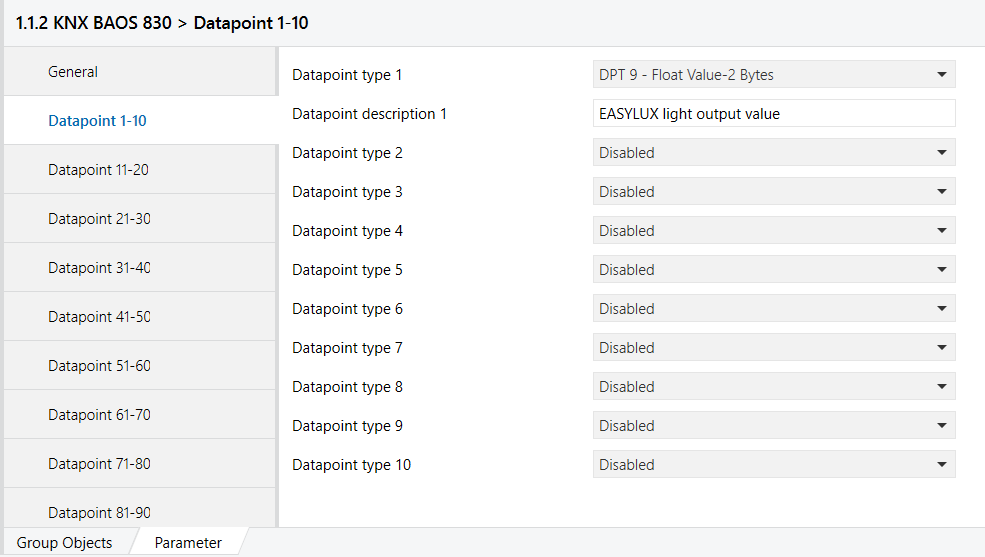
Data Point Types Supported by BAOS with Associated TapHome Devices or Variables#
| Label in BAOS | Data Point Type | Used by TapHome Virtual Devices | Used by TapHome Virtual Variable | Comment |
|---|---|---|---|---|
| DPT 1 | 1 Bit, Boolean | ✓ | ✓ | |
| DPT 2 | 2 Bit, Control | ✗ | ✓ | |
| DPT 3 | 4 Bit, Dimming, Blinds | ✗ | ✓ | |
| DPT 4 | 8 Bit, Character Set | ✓ | ✓ | |
| DPT 5 | 8 Bit, Unsigned Value | ✓ | ✓ | |
| DPT 6 | 8 Bit, Signed Value | ✓ | ✓ | |
| DPT 7 | 2 Byte, Unsigned Value | ✓ | ✓ | |
| DPT 8 | 2 Byte, Signed Value | ✓ | ✓ | |
| DPT 9 | 2 Byte, Float Value | ✓ | ✓ | |
| DPT 10 | 3 Byte, Time | ✗ | ✗ | Implementing date and time from KNX into TapHome does not make sense. TapHome has its own internal date and time engine. |
| DPT 11 | 3 Byte, Date | ✗ | ✗ | |
| DPT 12 | 4 Byte, Unsigned Value | ✓ | ✓ | |
| DPT 13 | 4 Byte, Signed Value | ✓ | ✓ | |
| DPT 14 | 4 Byte, Float Value | ✓ | ✓ | |
| DPT 15 | 4 Byte, Access | ✗ | ✓ | |
| DPT 16 | 14 Byte, String | ✗ | ✗ | Planned feature, coming soon |
| DPT 17 | 1 Byte, Scene Number | ✗ | ✓ | |
| DPT 18 | 1 Byte, Scene Control | ✗ | ✓ |
4. Configure Communication Flags#
Switch to Group Objects, right click on data point and choose Properties.
For Data Points Sending Information to TapHome#
For data points which will be sending information to TapHome (data points which will be only written from TapHome), you have to choose Communication, Write, Transmit flags:
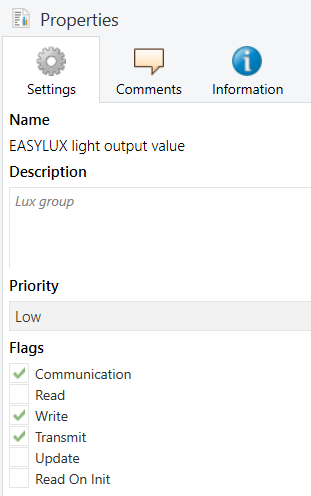
For Data Points Receiving Information from TapHome#
For data points which will be receiving communication from TapHome (data points which will be only read from TapHome), you have to choose Communication, Read, Transmit flags:
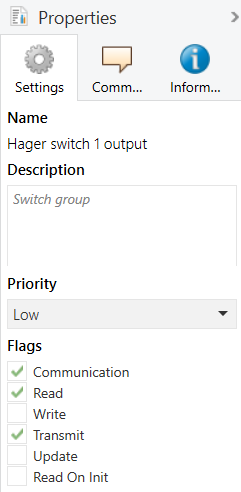
5. Configure Group Addresses#
Change to Group Addresses view and link each BAOS data point to appropriate group:

6. Download Configuration to KNX Gateway Board#
Connect KNX Gateway Board to KNX bus. Press Learn button on the gateway (green LED indicator will light up), and then make a full download from ETS.
To download: right-click on the gateway device → Download → Full download.